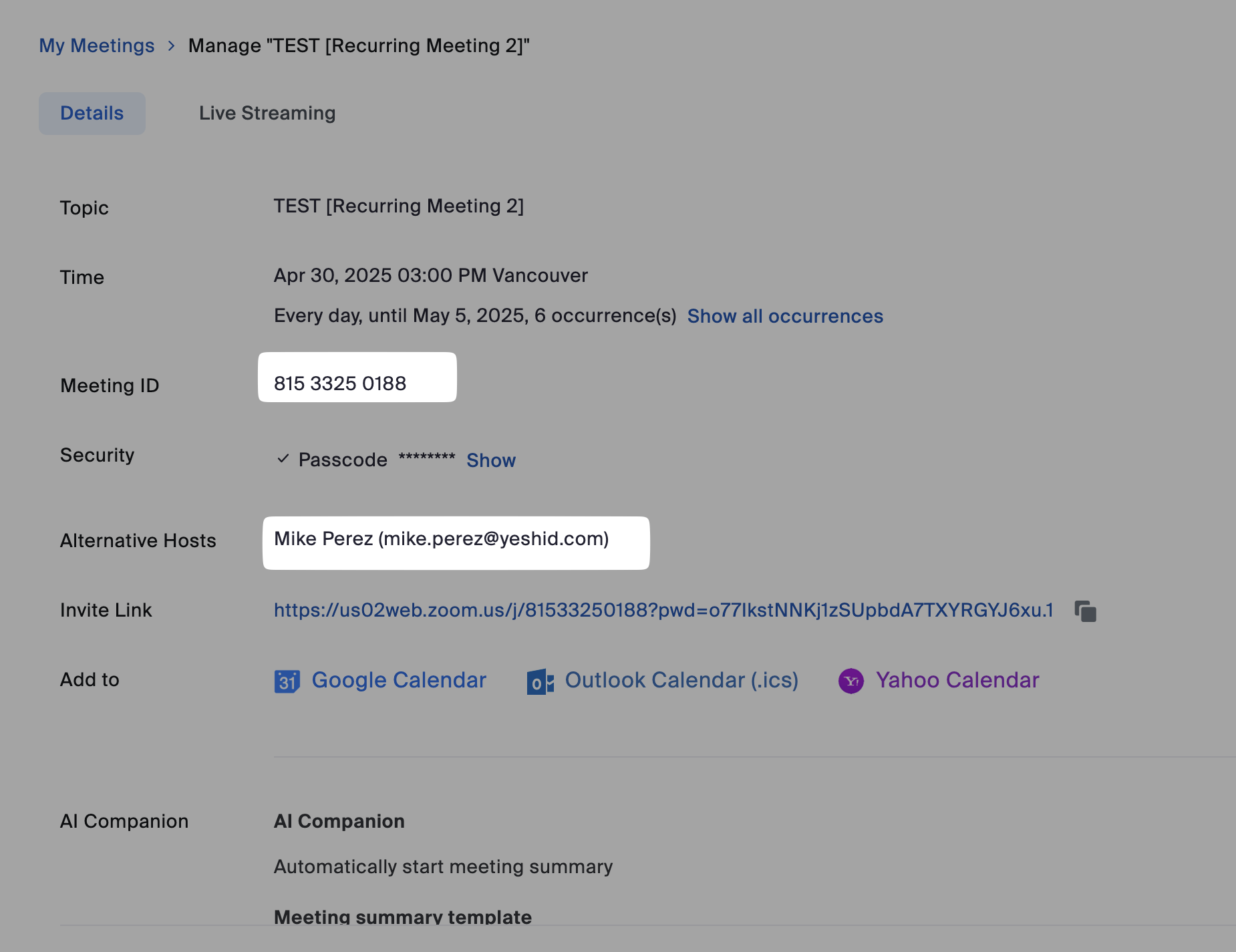
Zoom - Add Onboarding User as Alternate Host for Meeting
Last updated: April 30, 2025
Introduction
Zoom API Reference: https://developers.zoom.us/docs/api/rest/reference/zoom-api/methods/#operation/meetingUpdate
Learn how to add alternate hosts to existing meetings using YeshID's custom provisioner for Onboarding Tasklists and Zoom's API.
Note: Zoom's API uses a patch operation which will overwrite any existing alternate hosts with the user that you're running the task with. (Any existing alternate hosts will be lost).
Pre-requisites
You already have a Zoom application created for the connection with YeshID.
📄 Connect & Integrate ZoomYou are the Zoom administrator that created the application.
You have the
meeting IDyou'd like to set an alternate host for.You have the email address of the
alternate host(s)you'd like to add (and they are active Zoom users)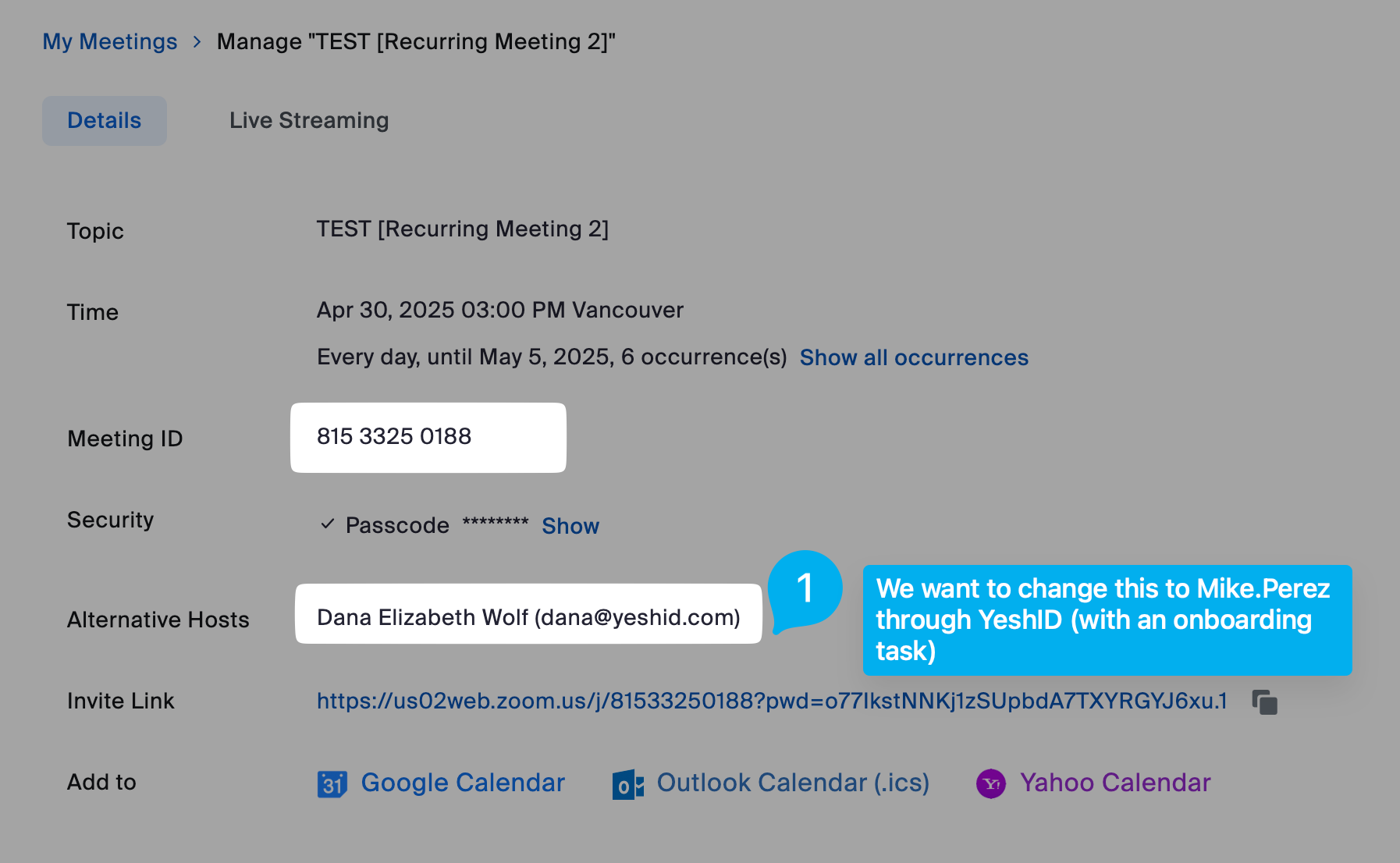
Steps
Set additional scopes on the Zoom application used for integration with YeshID
Navigate to marketplace.zoom.us
Find your application
Add additional scopes:
meeting:update:meeting:admin
Save the scopes.
Add a custom action in Zoom
In YeshID, navigate to the Zoom app (Applications > Zoom)
Add an additional action "Add as Alternate Host"
Set the following options:
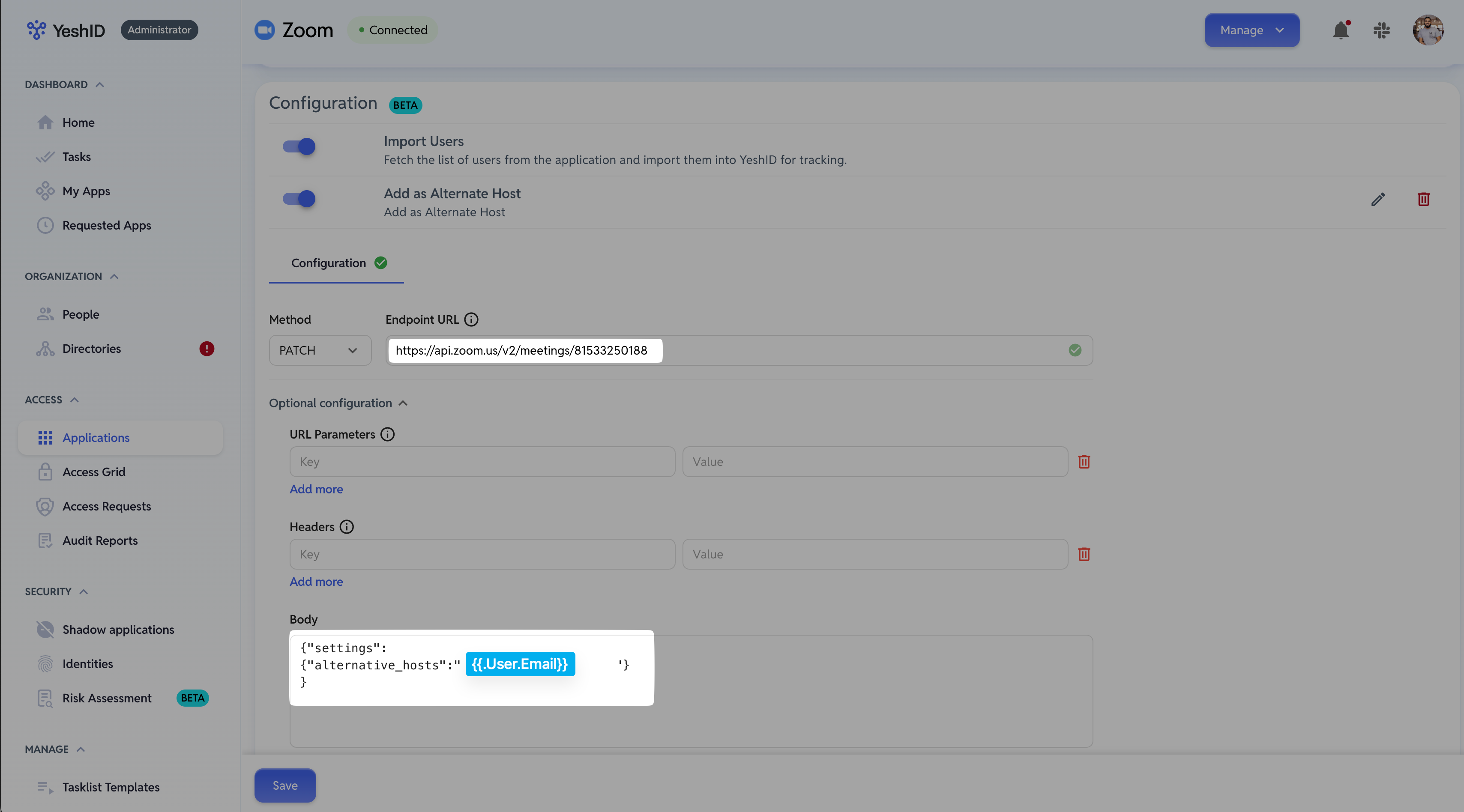
Method:
PATCHEndpoint URL:
https://api.zoom.us/v2/meetings/<your-meeting-id>Body:
{  "settings":
  {  "alternative_hosts":"{{.User.Email}}"  } // You can set multiple admins as
                                                    // comma separated values
}
Save the changes
Add to existing on-boarding template (new users) OR create a new Onboarding Task-List that makes use of the Custom Action
Add task
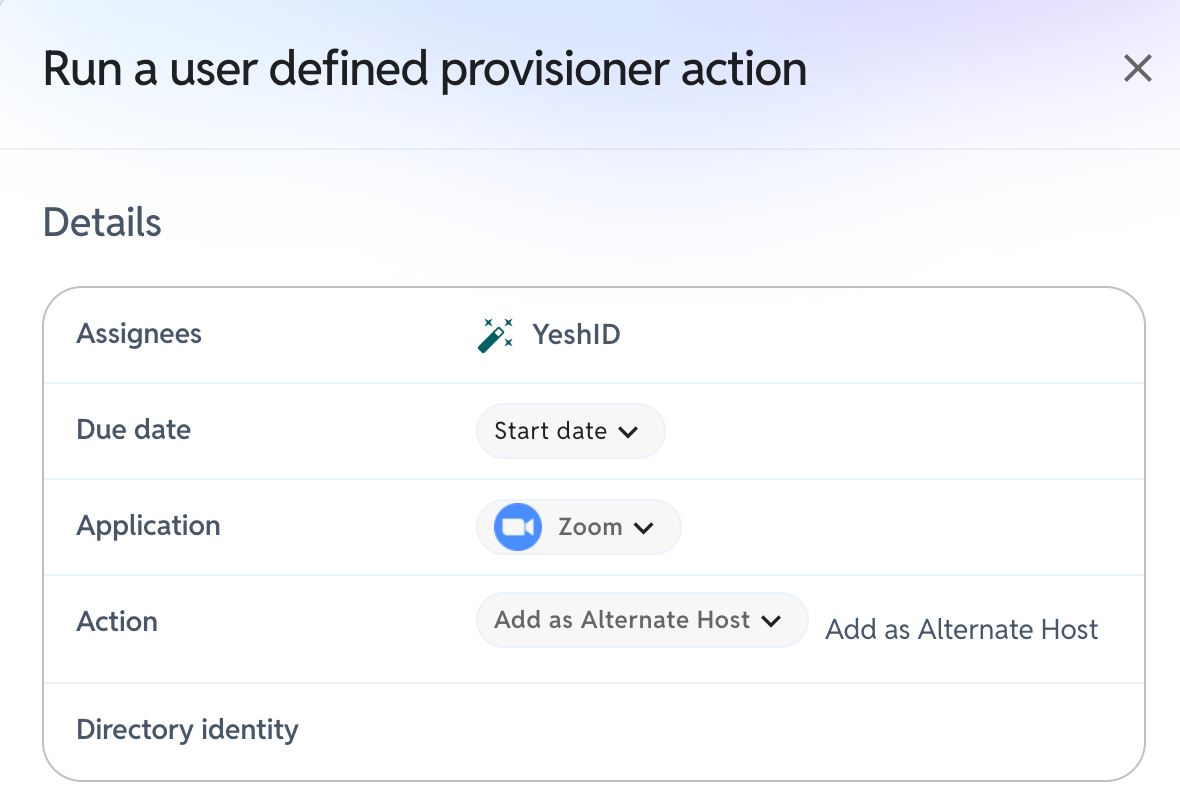
/Run a user defined provisioner actionChoose Application
ZoomChoose Action that you created
Add as Alternate Host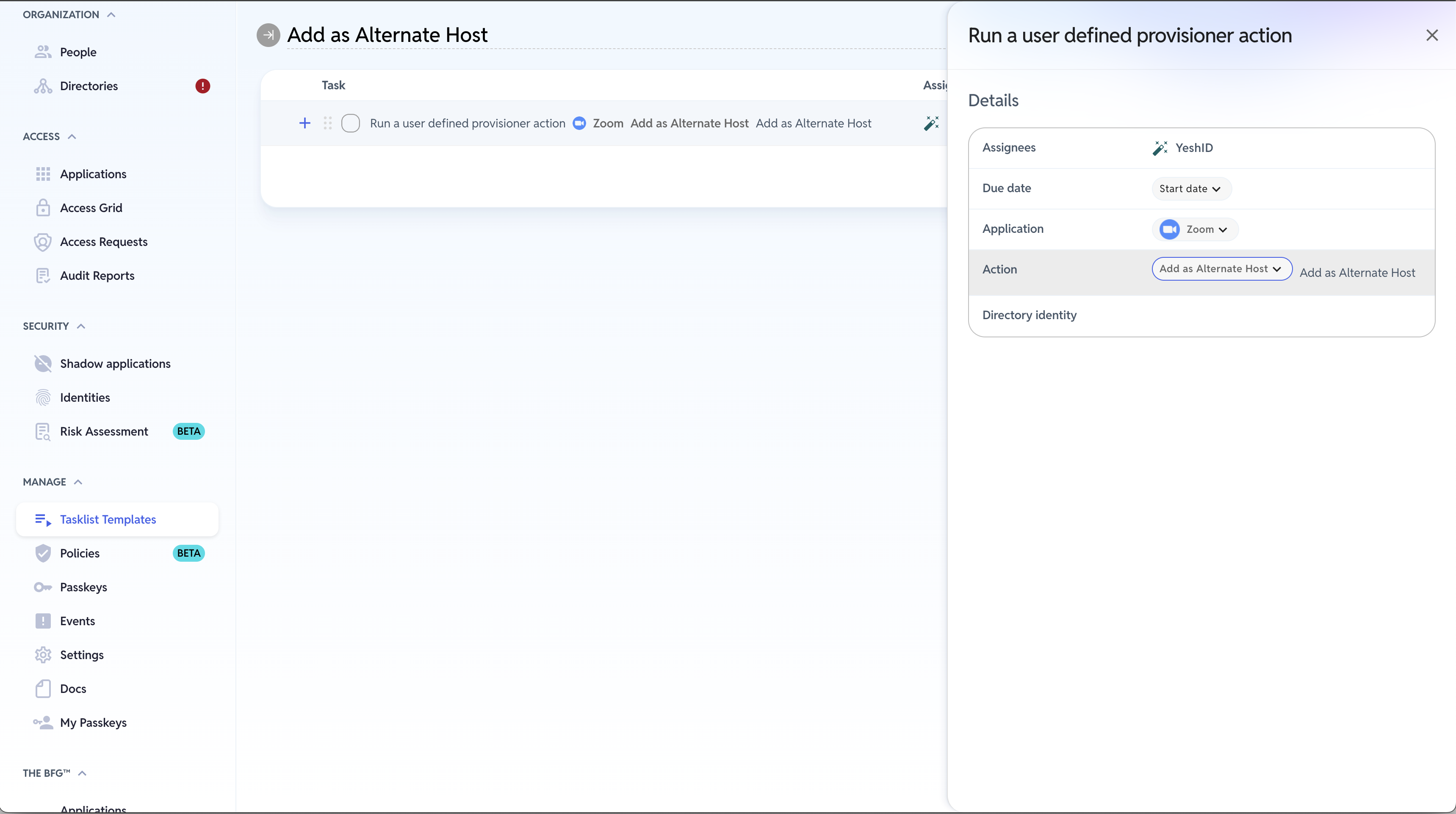
Execute the onboarding template with the
Add an Alternate Hosttask on the specified user.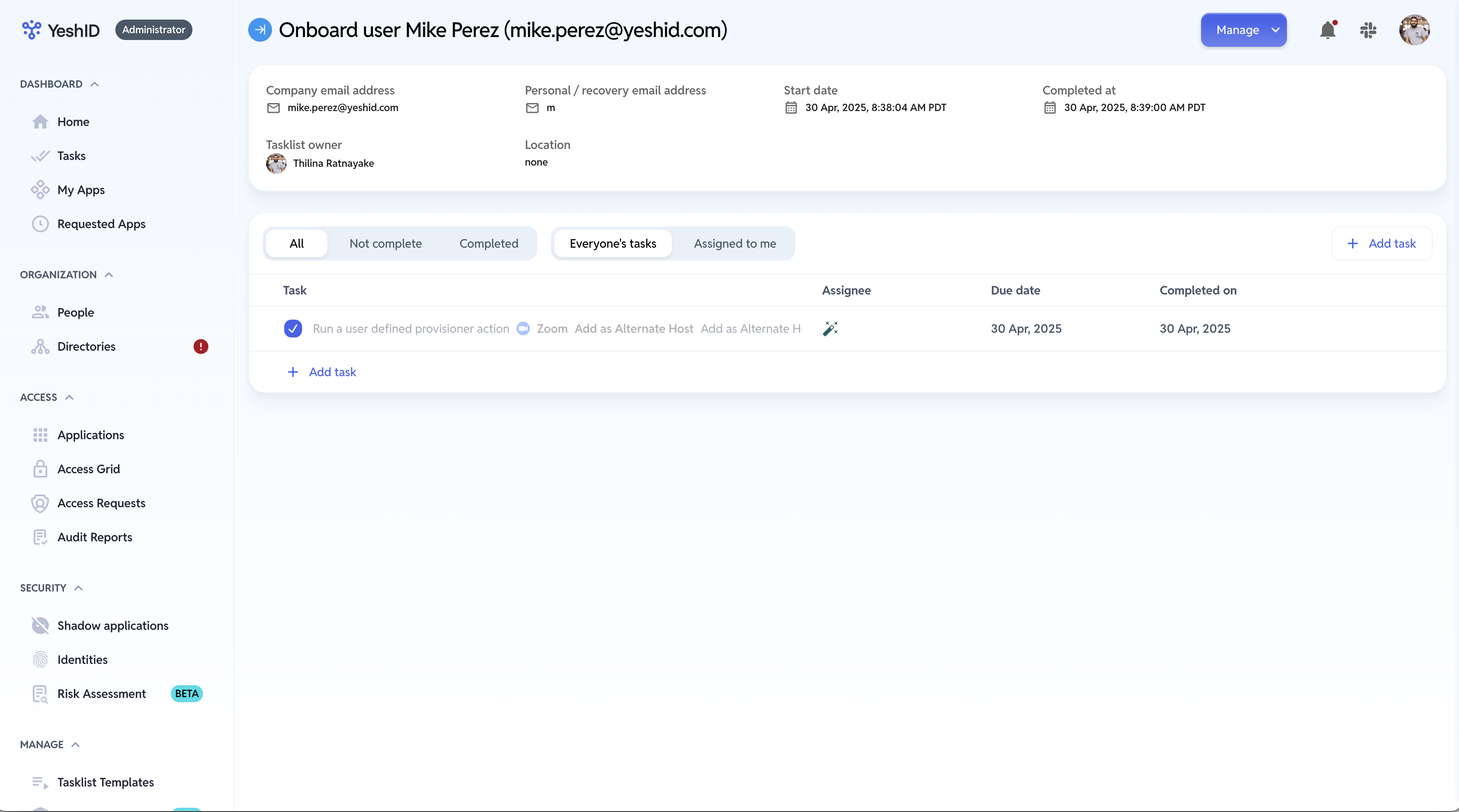
When this task completes, your meeting's alternative host will be changed.