Connecting to Rippling
Last updated: July 21, 2026
This guide shows how to connect Rippling as an HRIS in YeshID, and the specific steps within Rippling. For an overview of how HRIS syncing works in YeshID — people sources, mappings, and create rules — see HRIS with YeshID.
Step 1: Create an API token in Rippling
Sign in to Rippling as an administrator.
Navigate to Tools > Developer > API Tokens (you can also search for “API Tokens” from the Rippling search bar).
Click Create API token.
Give the token a recognizable name, such as
YeshID.Enable the following scopes:
workers.readusers.read
Click Create, then copy the token and store it somewhere safe. Rippling only shows the token once.
Ensure the token owner can view the entire company. API tokens inherit their owner’s permission profile. If the owner’s permissions are limited to a team or department, YeshID will only import the employees that owner can see.
Note: Rippling automatically revokes tokens that go unused for more than 30 days, and tokens whose owner is terminated. Create the token as a durable administrator (or service) account so the connection is not tied to a single person’s employment.
Step 2: Connect Rippling in YeshID
In YeshID, navigate to Applications -> Add Application and add Rippling.
Click Connect.
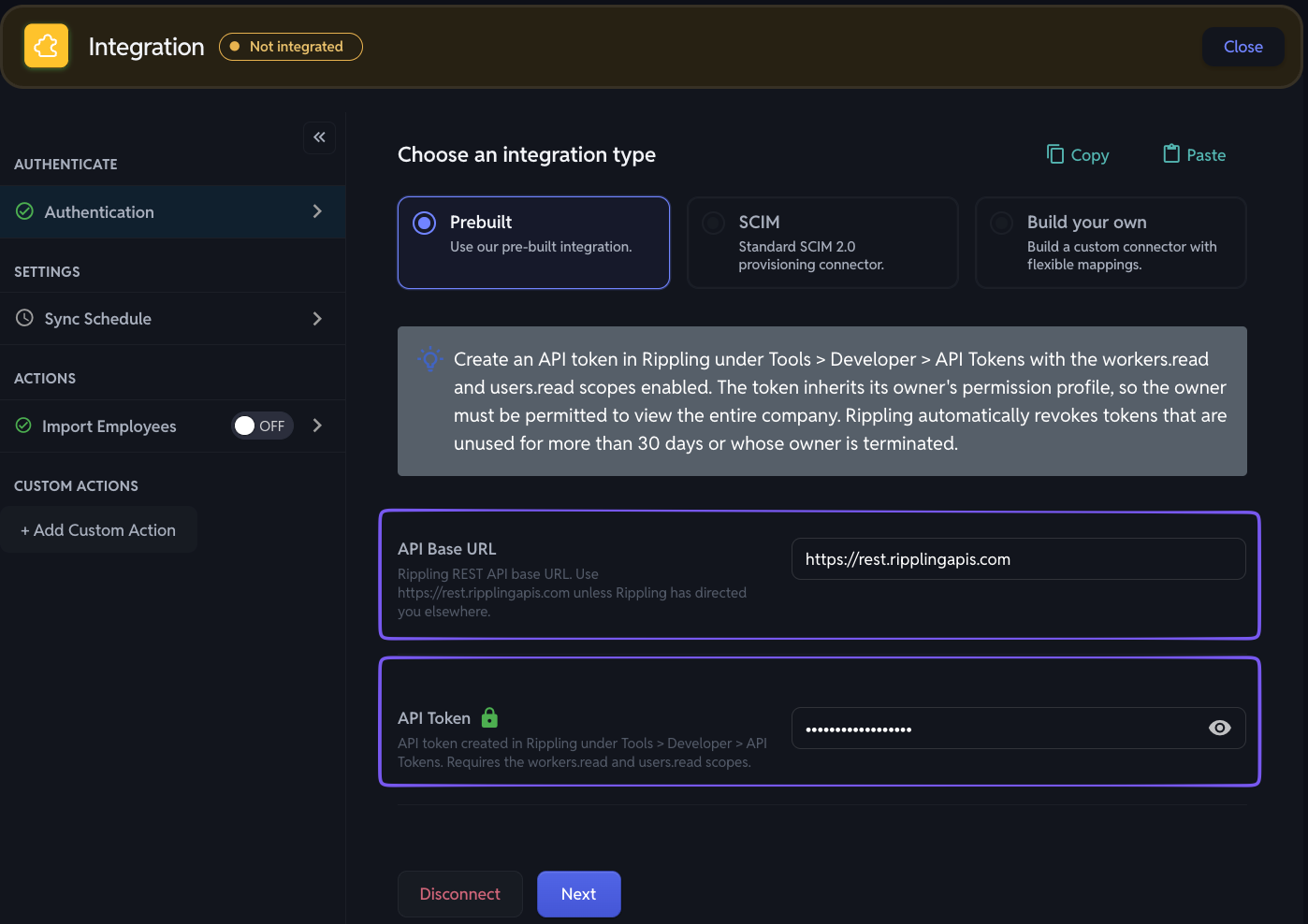
Fill in the configuration form:
API Base URL — leave the default
https://rest.ripplingapis.comunless Rippling has directed you to a different endpoint.API Token — paste the token you created in Step 1 and click Next.
Active Employees Only — when set to Yes, only active and upcoming (hired/accepted) workers are imported; terminated workers are excluded. When set to No, all workers are imported, including terminated ones.
Step 3: Test the import and review mappings
Under Import & Mapping, click Test. YeshID fetches workers from Rippling and displays the results (the preview shows up to the first 100 workers).
Review the field mappings and adjust them if needed.
Click Save.
YeshID imports the following fields from Rippling:
YeshID field | Rippling source |
|---|---|
First name | Legal given name |
Last name | Legal family name |
Preferred name | Preferred given name |
Work email | |
Start date | Start date |
End date | End date |
Title | Job title |
Status | Worker status |
Manager | The worker’s manager in Rippling |
Notes
Syncing is polling-based, not instant. Changes in Rippling appear in YeshID after the next scheduled sync.
Rippling workers have one of five statuses:
INIT,HIRED,ACCEPTED,ACTIVE, orTERMINATED. YeshID treatsACTIVE,HIRED, andACCEPTEDas employed, so upcoming hires are imported ahead of their start date and onboarding can be scheduled before day one.If the connection stops working, check that the token still exists in Rippling — remember that unused tokens are revoked after 30 days, and tokens are revoked when their owner is terminated.