Connecting to UKG Pro
Last updated: October 16, 2026
Overview
This guide shows how to connect UKG Pro as an HRIS in YeshID, and the specific steps within UKG. Refer to the document for follow-on activities
Steps
1. Create a Service Account
In UKG, navigate to Security -> Web Services -> Service Account Administration (in search)
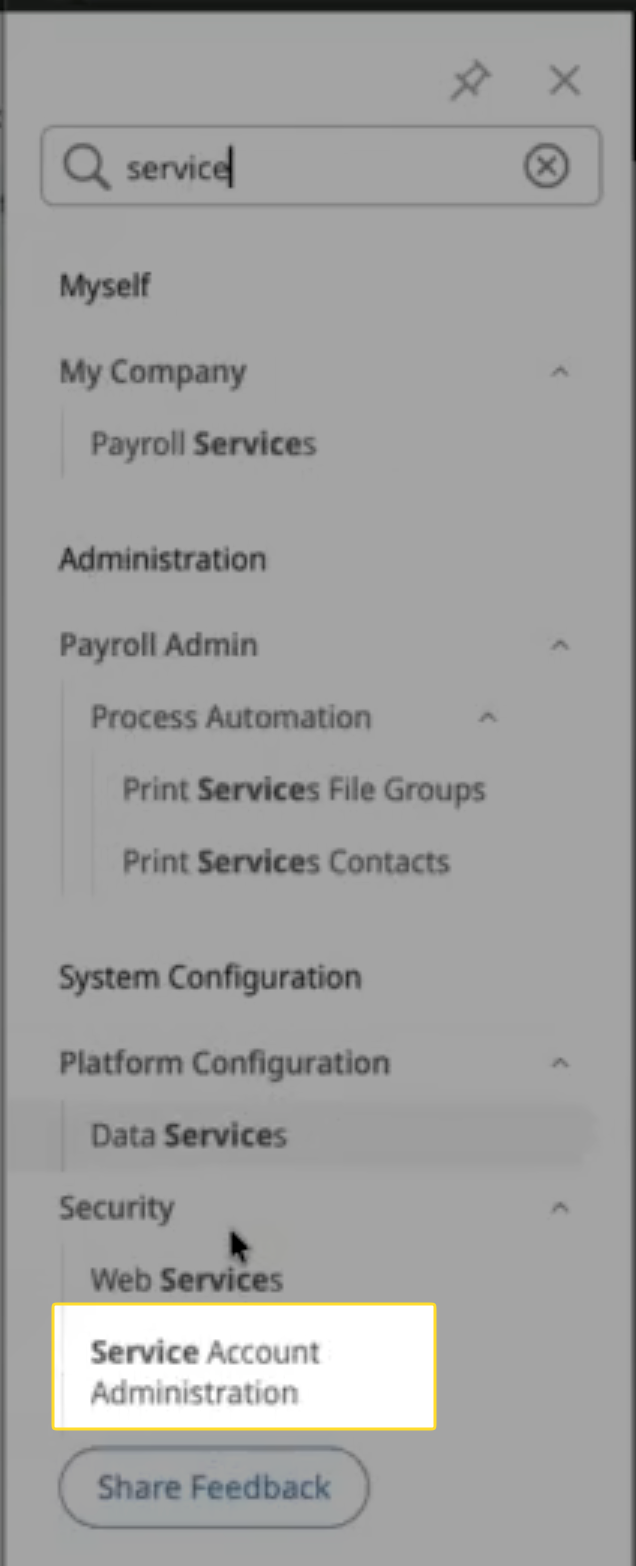
Create a new Service Account
Grant permission Employee Export: VIEW

This will generate a password that needs to be stored (this will be added to YeshID later)
2. Create a Report in UKG Pro
Sign in to your UKG Pro instance with administrator permissions.
Navigate to Business Intelligence -> People Analytics
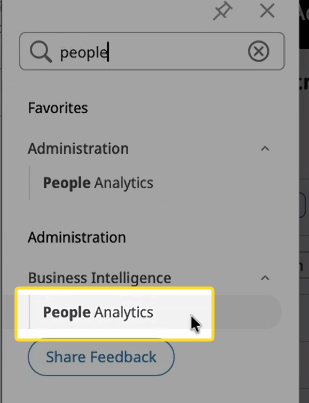
Click Explore Analytics
Click New and Select Report
Click Blank Template and Click Ok
Click the Pages icon on the toolbar, right-click Report, and then select Open report from clipboard.
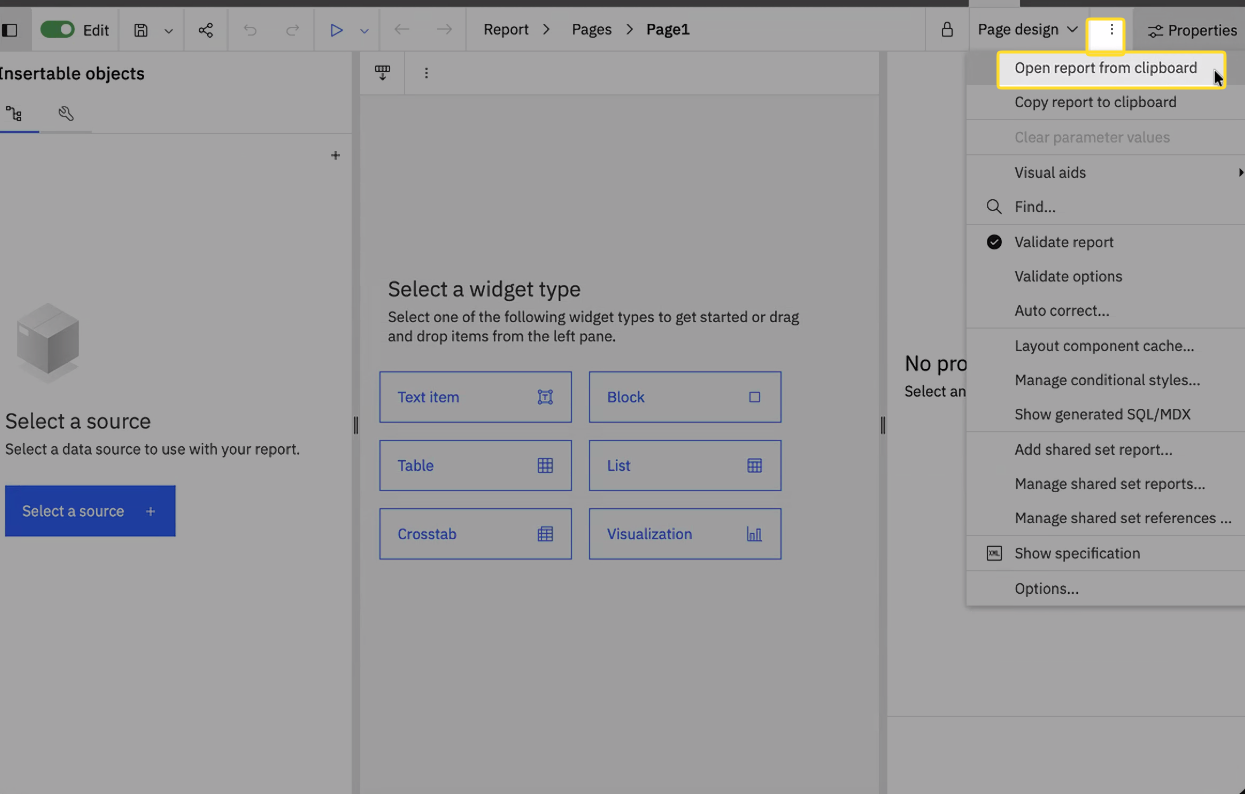
Open the YeshID UKG Pro report spec (attached below), copy the contents into the report window, and then click OK.
Click OK when the report validation completes.
Select Save as, click Collapsed items, and select Team content.
Click the new folder icon, enter YeshID for the folder name, enter a name for the report in the Save as field, and click Save.
Click Home, click Action menu (...) for the report you created in step 10, and select Properties.
Expand Advanced and copy the value in the ID field to a text editor. This is your Report ID. ✨
3. Get additional details from UKG
Sign in to your UKG Pro instance with administrator permissions.
Click MenuSystem Configuration and select Web Services below Security.
Copy the values displayed in the User API Key and Customer API Key fields and paste them in a text editor.
Ensure this is the User API Key of the service account created for YeshID (shown in Service Account Administration), not the User API Key on the Web Services page
Copy the
base URLdisplayed next to Business Intelligence web service endpoint and paste it in a text editor. The base URL is the portion of the URL that is common to all of the displayed fields.
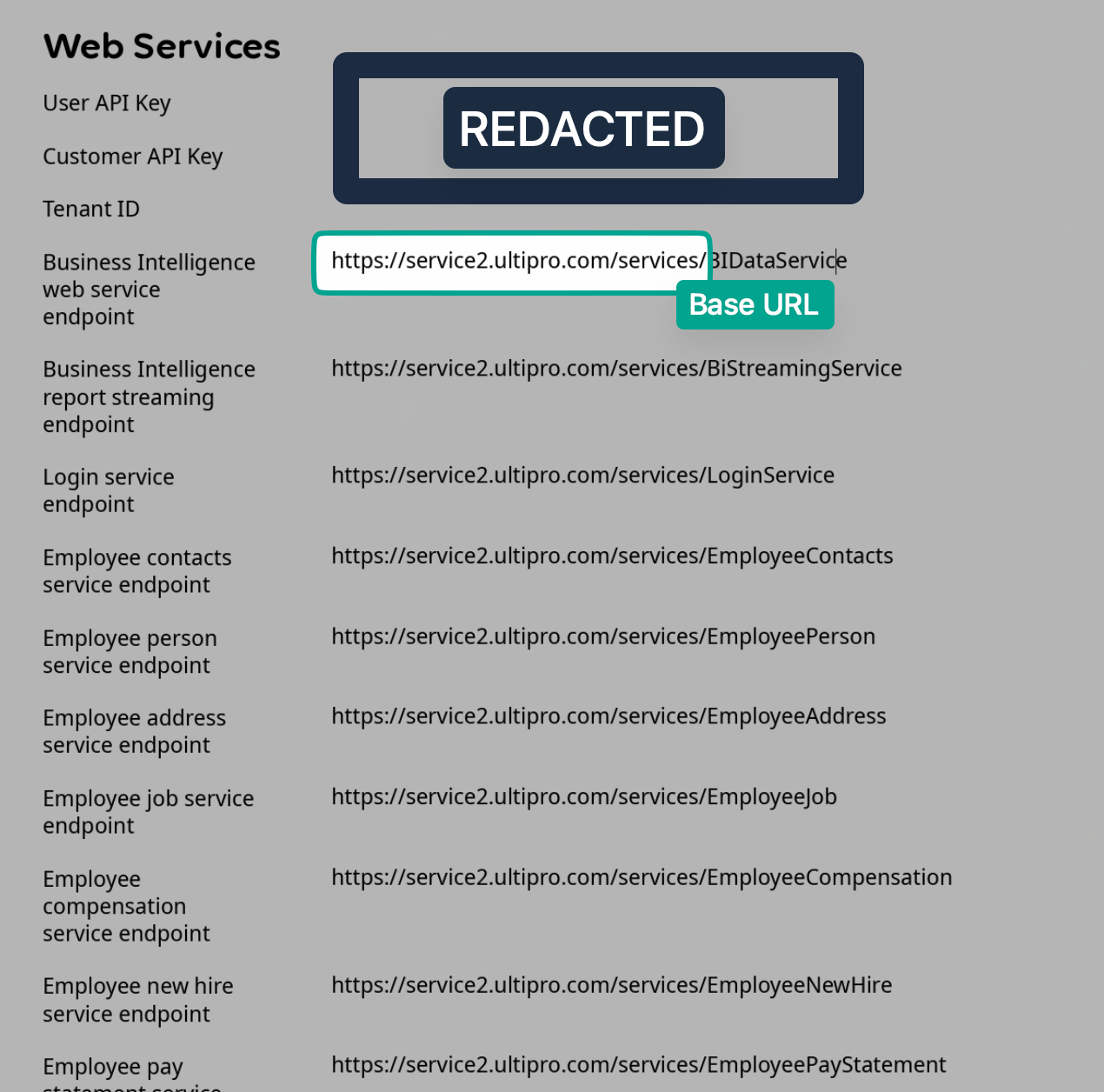
Note down:
BaseURL= Business Intelligence web serve endpoint (beforeBIDataService)User Key= User API Key from Service AccountCustomer Key= Customer API Key
4. Add UKG Pro to YeshID as an Application
Go to Applications -> Add Application
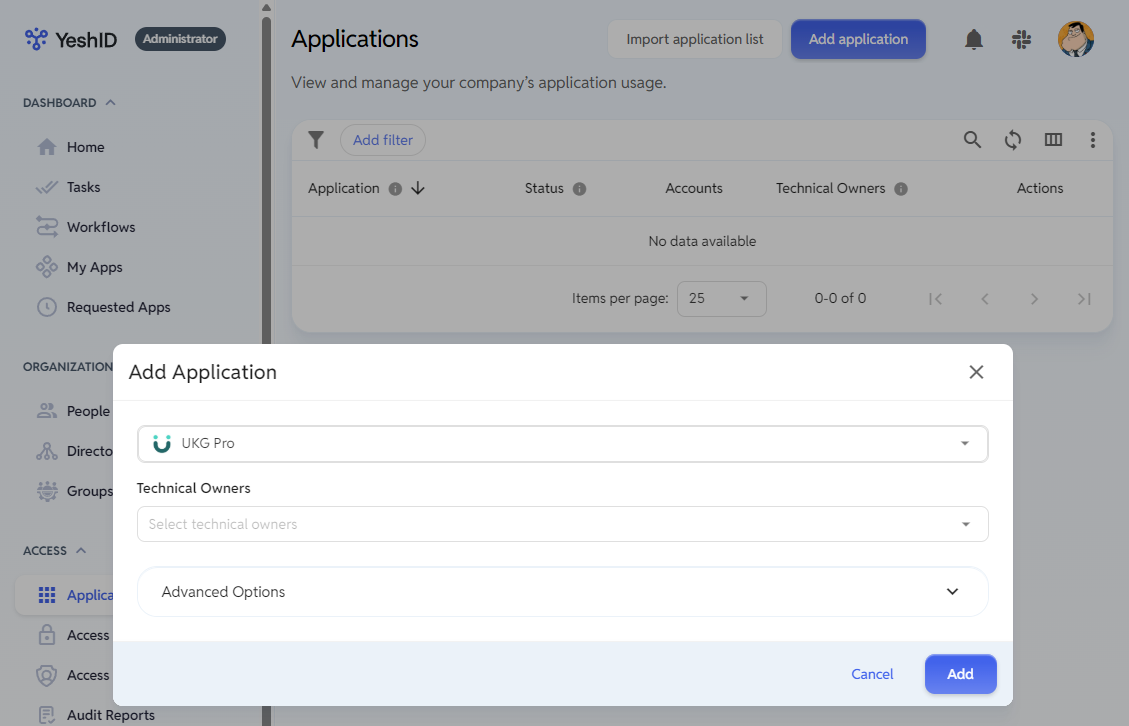
5. Configure UKG Pro Integration in YeshID
Click "Connect"
Fill out the following details
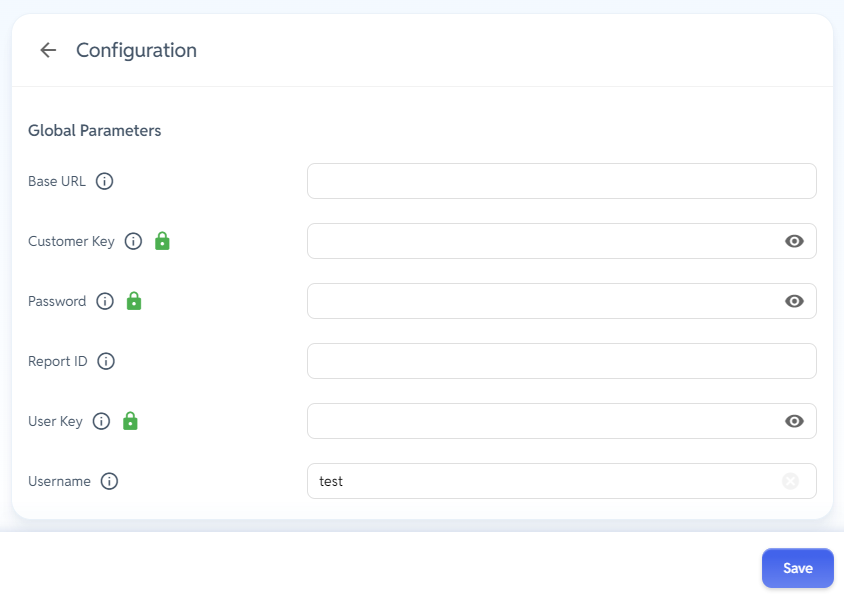
Base URL: the
base urlfrom step 2dCustomer Key: the customer api key from step 2c
Password: Enter the UKG Pro administrator password
Report ID: the report ID copied from the last step in Creating a report in UKG Pro
User Key: the user api key from step 4c
Username: Enter the UKG Pro Service Account user name
6. Test Integration
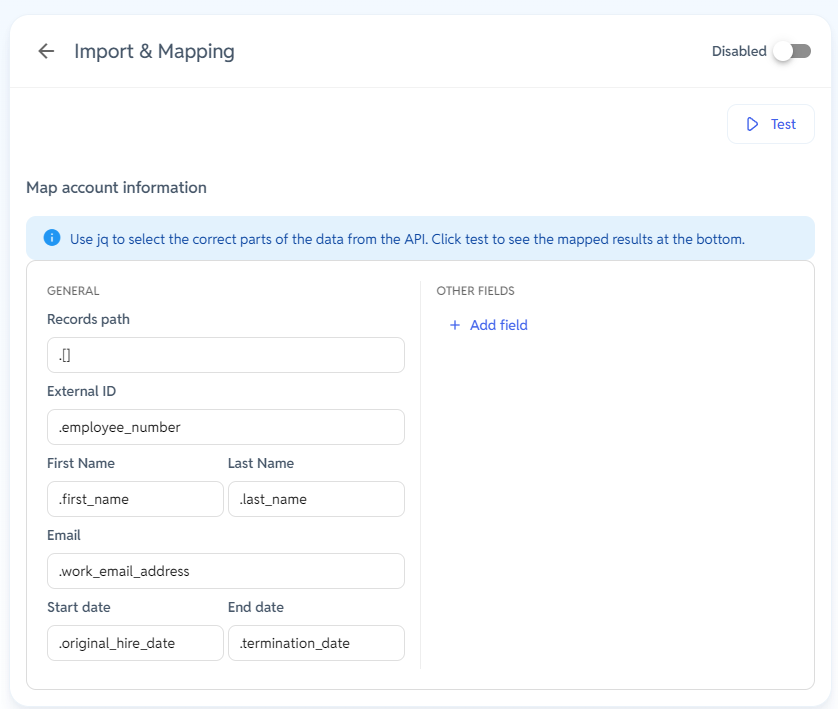
Under Import & Mapping click the “Test” button. This will fetch the report from UKG Pro and display the results. At this point the field mapping from UKG Pro to YeshID can be modified to suit your needs, including adding any custom fields. Once you are happy with the results, click “Save”
Troubleshooting
The integration cannot access or run the report
If YeshID cannot retrieve the UKG Pro report, check access for the integration account configured in YeshID, not just an administrator account.
Confirm BI / Reports-as-a-Service access. Ask UKG Support to confirm that the integration account is enabled for BI / Reports-as-a-Service and can execute the report through the BI web service. If access is not enabled, open a support case in the UKG Customer Success Portal to request enablement before retrying.
Confirm access to the Administrator Package. The YeshID report is built on UKG's delivered Administrator Package under UltiPro BI for Core HR and Payroll. The integration account needs access to this package as well as to the report.
Check report and parent-folder permissions. In Team content > YeshID, locate the report and confirm that the integration account can access and execute it. Check permissions on the report and its parent folders so the account can reach the report.
Verify the current Report ID. Open the report's Properties > Advanced > ID. Compare this value with the Report ID configured in YeshID and, if an error includes a Report ID, the value in that error. If they differ, update YeshID to use the ID of the report you intend the integration to run.
Important: A report running successfully under an administrator login does not confirm that the integration account can run it. The integration account has its own permissions.
After completing these checks, return to Import & Mapping in YeshID and click Test. A successful test retrieves the report and displays its results for field mapping.