Using YeshID
Last updated: July 29, 2026
YeshID is how you get and manage access to the tools you use for work at your company. You'll use it to see the apps you already have, request access to something new, and handle anything the company asks you to do when you join, change teams, or when access is being reviewed.
You don't have to learn an admin console. For most people, YeshID shows up in two places: a Slack message from the YeshID bot when something needs your attention, and the YeshID app (app.yeshid.com) when you want to see everything in one place.
In this guide:
Signing in
Your apps
Requesting access to something new
Approving a request
Handling a task you were assigned
Your first days: new-hire onboarding
Notifications and the Slack bot
Getting help / FAQ
Quick reference
1. Signing in
You sign in with your existing Google or Microsoft account, there's no separate YeshID password to create or remember.
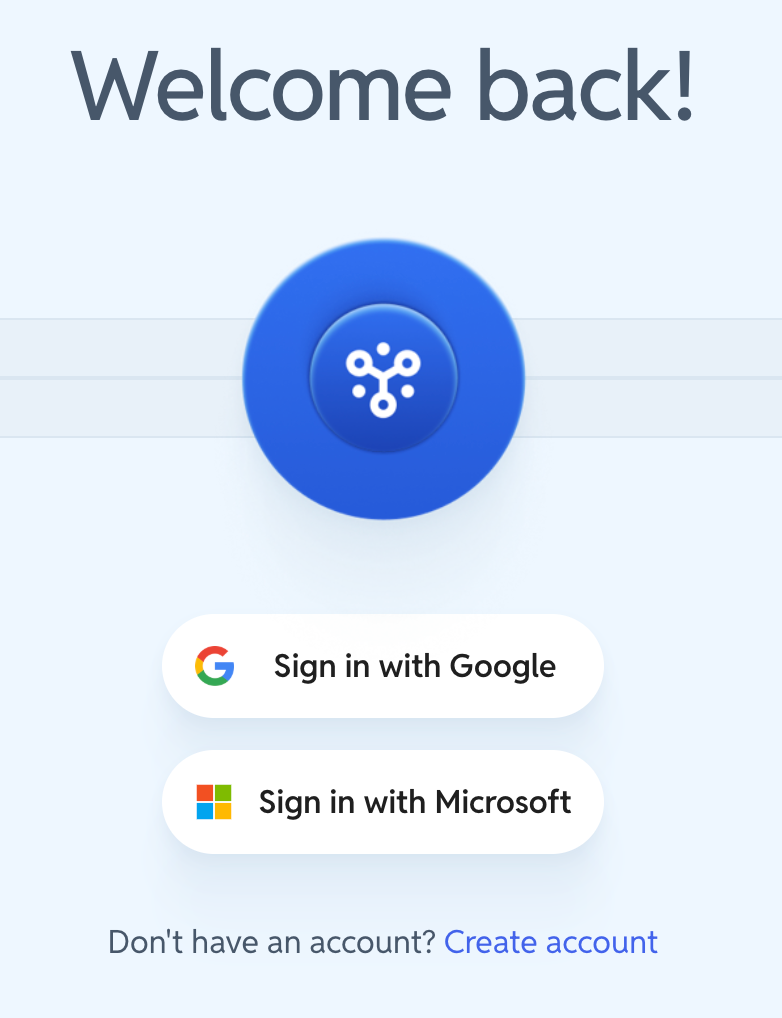
Go to app.yeshid.com.
Choose Sign in with Google or Sign in with Microsoft — whichever you use for work.
The first time you land, you'll go straight to your My Apps page.
That's it. If you get a message that your account isn't recognized, that usually means you haven't been added yet — reach out to your IT team.
2. Your apps
My Apps is your home base, open it from My Apps in the left-hand menu.
Here you can:
Open an app — click an app's tile to launch it / sign in.
Request something new — use the Request an application button (top-right), or the dashed Request an application tile. See section 3.
Accept a pending invite — apps waiting for you to finish signing up appear under Pending invites; click one to accept and sign in.
Find an app fast — use the Search my applications box.
To check on something you've requested (rather than something you already have), go to the Requested Apps page — that's where request status and any back-and-forth with your approver live. See "Tracking your request" below.
3. Requesting access to something new
When you need a tool you don't have yet, you request it in YeshID. Your request goes to the right approver automatically — no ticket, no chasing anyone down — and once it's approved, YeshID sets up your access for you.
You can request from Slack (fastest) or from the app.
From Slack
Type
/requestin Slack and press Enter.In the Request an Application form, fill in:
Requesting for — yourself (this is the default).
Select application — pick the app you need. Not listed? Use Or request a different app and paste its URL.
Select role — if the app offers roles, pick the one that matches what you need to do (optional).
Reason for your request — a short note on why you need it. This is what your approver reads, so a clear line here gets you a faster yes.
Any extra questions your company requires, and — for time-limited tools — a Start date/time and Access duration.
Submit. You'll get a confirmation that your request was sent.
From the app
On My Apps, click Request an application.
In the Request an application dialog, fill in Application Name, Role (if offered), and Reason for your request (and start date/time + duration if the app is time-limited).
Click Submit request. You'll see "Your request was successfully sent" — once it's approved, you'll get a confirmation.
Tracking your request
Open Requested Apps from the left-hand menu to see everything you've asked for and where it stands.
If an approver has a question, you'll see a comment indicator. Click the request to open it (Access Request for [app]), read the comment, and reply in the Comments box.
When it's approved, the app moves into your My Apps.
Time-limited access: some tools are granted for a set window (hours, days, or weeks); when it ends, YeshID removes the access automatically — you don't need to do anything, and you can request it again anytime. Please note, time-limited access and extra custom questions on a request are Business plan features.
4. Approving a request
You'll only see this if someone has named you as an approver — for example as a manager, an application's technical owner, or a member of an approval group.
When a request needs your sign-off, YeshID sends it to you. You can decide from Slack or in the app.
From Slack
You'll get a message from the YeshID bot with the request details and two buttons:
Complete task — approves the request. Once every required approver has signed off, YeshID sets up the person's access.
Reject task — denies it. A reason is required — type it in the Reason box before rejecting.
Need more context first? Use the link in the message to open the full request in YeshID and comment back to the requester.
In the app
Open the request — from the Slack link, or go to Workflows and filter Workflow Type → Access Request.
Review the reason and any answers the requester gave. Comment back if you need more detail before deciding.
Click Approve or Reject. If a request has more than one approval group, it moves through them in order — approving passes it to the next group, or, if you're the last approver, kicks off setting up the access.
5. Handling a task you were assigned
Beyond approvals, YeshID sometimes assigns you a task — a specific step in a larger workflow. You might get one because you're setting up part of a new hire's access, doing a step only a person can do, or reviewing access during an audit. YeshID tells you what's needed and tracks it to done.
From Slack
You'll get a direct message like:
You have a new task: [task name]. Once done, click complete!
Click Complete task when you've done it.
Click Reject task if you can't or shouldn't do it — a reason is required.
For anything that needs more context, use the link in the message to open the task in YeshID.
In the app
Go to Workflows in the left-hand menu, then the Tasks tab.
Find the tasks assigned to you — use the search box (Search tasks by applications, target people, status) or the Workflow Type and status filters to narrow the list. Note, if you are not an admin, you will only be able to view the tasks assigned to you.
Open a task to see what's being asked, then act:
Complete task / Approve — marks it done and lets the workflow move on.
Reject / Won't do task — sends it back with your reason.
When you complete a task, the workflow advances automatically — the next steps (including anything YeshID can do on its own) kick off from there.
6. Your first days: new-hire onboarding
In your first days, YeshID is what gets your accounts and access set up. Here's what to expect:
You'll get Slack messages from the YeshID bot as accounts are created and as any steps that need you come up.
Some steps may be assigned to you as tasks. They look just like any other task (see section 5) — a Slack DM and/or a row under Workflows → Tasks. Work through them and click Complete task as you finish each one.
Follow any first-time setup prompts YeshID shows you when you sign in.
Check My Apps to see the tools you've been given, and request anything missing (see section 3).
If a step is unclear or something looks stuck, ping your IT contact.
7. Notifications and the Slack bot
Most of your day-to-day with YeshID happens through the YeshID Slack bot (@yeshid). It will DM you when:
there's a task that needs your attention,
one of your access requests is approved or needs follow-up, and
you're assigned to (or removed from) a task.
You can act right inside Slack — approve, complete, reject, or reply — using the buttons in the message. When something needs the full picture, every message links straight to it in the YeshID app.
If your company uses Microsoft Teams instead of Slack, the same notifications and buttons show up there.
8. Getting help / FAQ
I don't see an app I need. Request it — from Slack with /request, or from My Apps → Request an application. If it's not in the list, use Or request a different app and paste its URL.
My request is stuck / hasn't been approved. Check Requested Apps to see which approver it's with. If it's been a while, a polite nudge to your approver is the fastest path.
I got a task I don't understand. Open it (from the Slack link or Workflows → Tasks) to see the details. If it's still unclear, Reject task with a reason explaining what you need — or ask your IT contact.
Who approves my requests? It depends on the app — often your manager, the app's owner, or a designated group. You'll see who it's with on the Requested Apps page.
I'm changing teams / leaving. You don't have to do anything special. Access changes are handled through YeshID workflows — you may get a task or two to confirm along the way.
Do I need a YeshID password? No. You sign in with your Company's Google or Microsoft account.
Quick reference
I want to… | Do this |
|---|---|
Sign in | app.yeshid.com → Sign in with Google / Microsoft |
See my apps | My Apps in the left menu |
Open an app | Click its tile on My Apps |
Request a new app | Slack: |
Check a request's status | Requested Apps page |
Approve / deny a request | Slack: Complete task / Reject task · App: Workflows → Approve / Reject |
Do a task I was assigned | Slack DM buttons, or Workflows → Tasks |
Get help | Your IT help channel |