Connect & Integrate with Salesforce via SCIM
Last updated: December 19, 2025
This page is under construction
Steps
In Salesforce
For Salesforce SCIM on the Salesforce side:
Create Salesforce User with an assigned license that allows for
App PermissionsCreate and/or assign a profile or permission set that includes at least the following permissions:
API Enabled
Manage Users
Manage Internal Users (if present)
View Setup and Configuration
Expand external client apps settings and confirmed that
Allow creation of connected appsis checked off.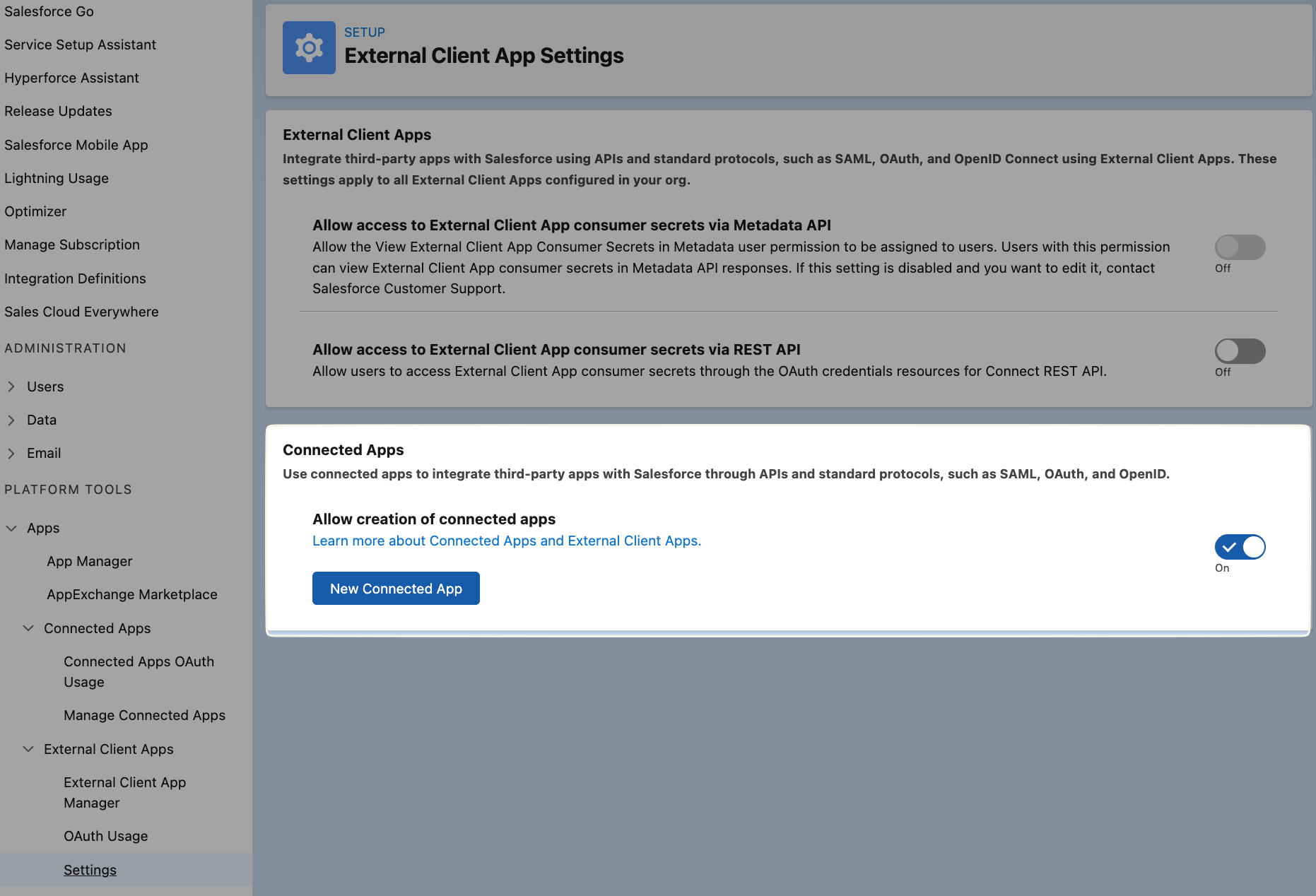
Setup → Apps → App Manager → New External Client App
Under API (Enable OAuth Settings):
Make sure Enable OAuth Settings is on
Make sure Enable Client Credentials Flow is checked
In Selected OAuth Scopes, add “Manage user data via APIs (api)” (sometimes shown as “Access and manage your data (api)”)
Best practice for this flow: keep scopes minimal (often API-only)
Manage Connected Apps → Edit Created App
Check box for
Enable User ProvisioningAdd created user from step 1 to the Run As under Client Credentials Flow
Obtain the OAuth Client ID and Secret
Navigate to App Manager
Find the app that you created
Click "Choose view" -> Manage consumer details
In YeshID
Under Construction